Volume Shading
The Shader Nodes workspace when selecting a Microscopy Nodes volume:
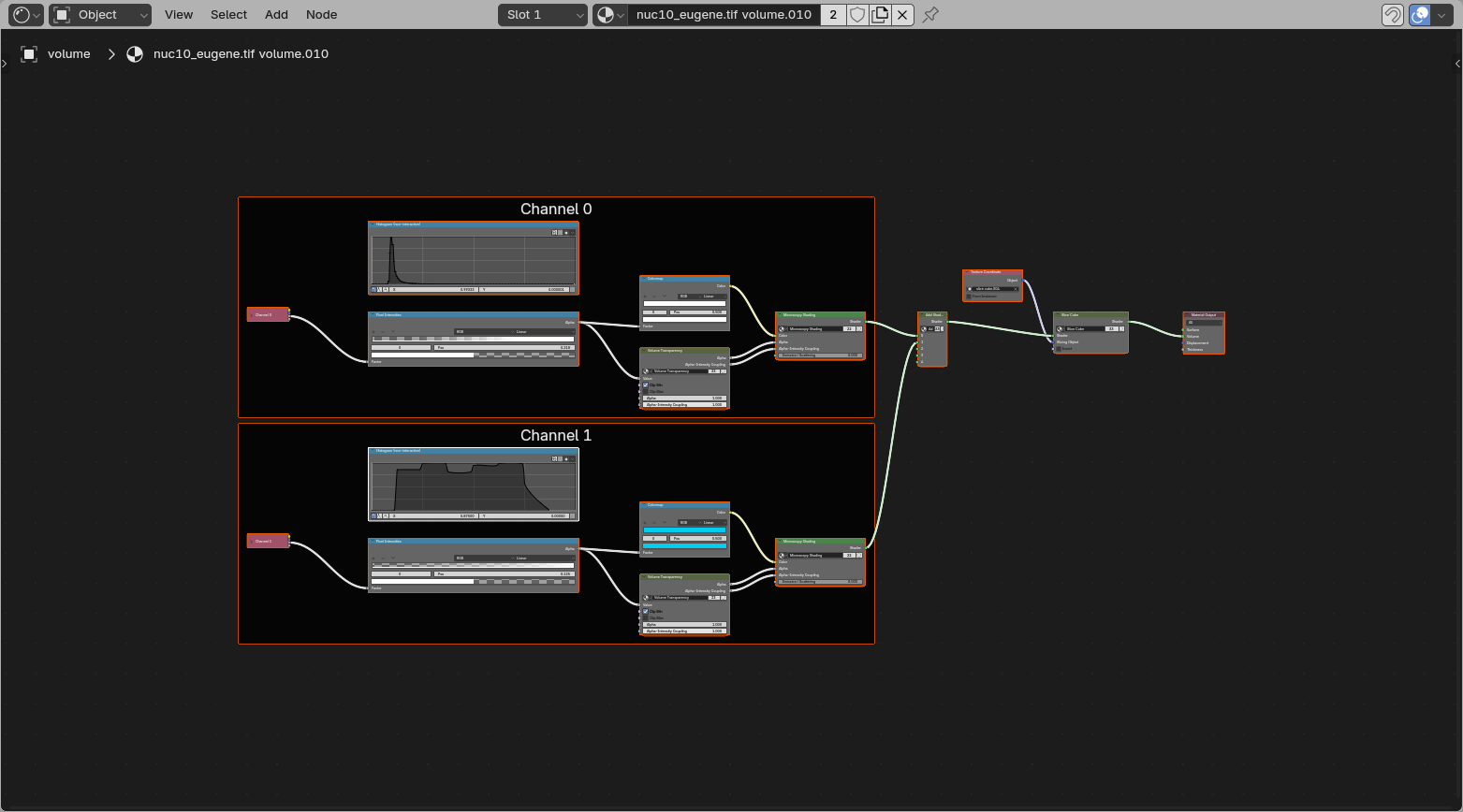
All loaded volume channels live in this one shared shader. Each channel has its own Channel frame with its own loading, transfer function, and shading controls. The channel outputs are then added together and passed through the shared slicing setup.
Channel
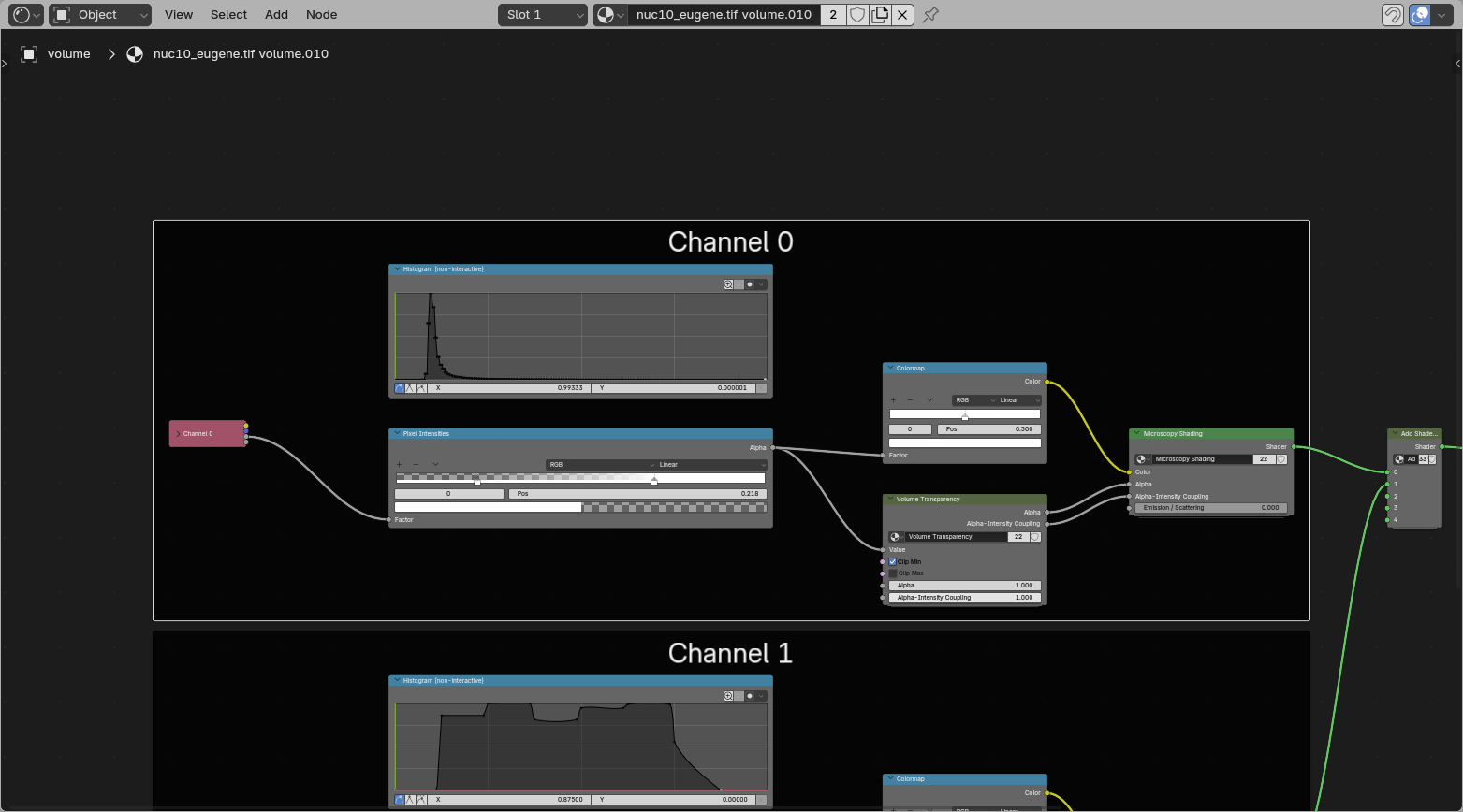
This frame contains the settings for one single channel. If multiple channels are loaded as volumes, each one gets its own copy of this frame inside the same material.
Data Loading
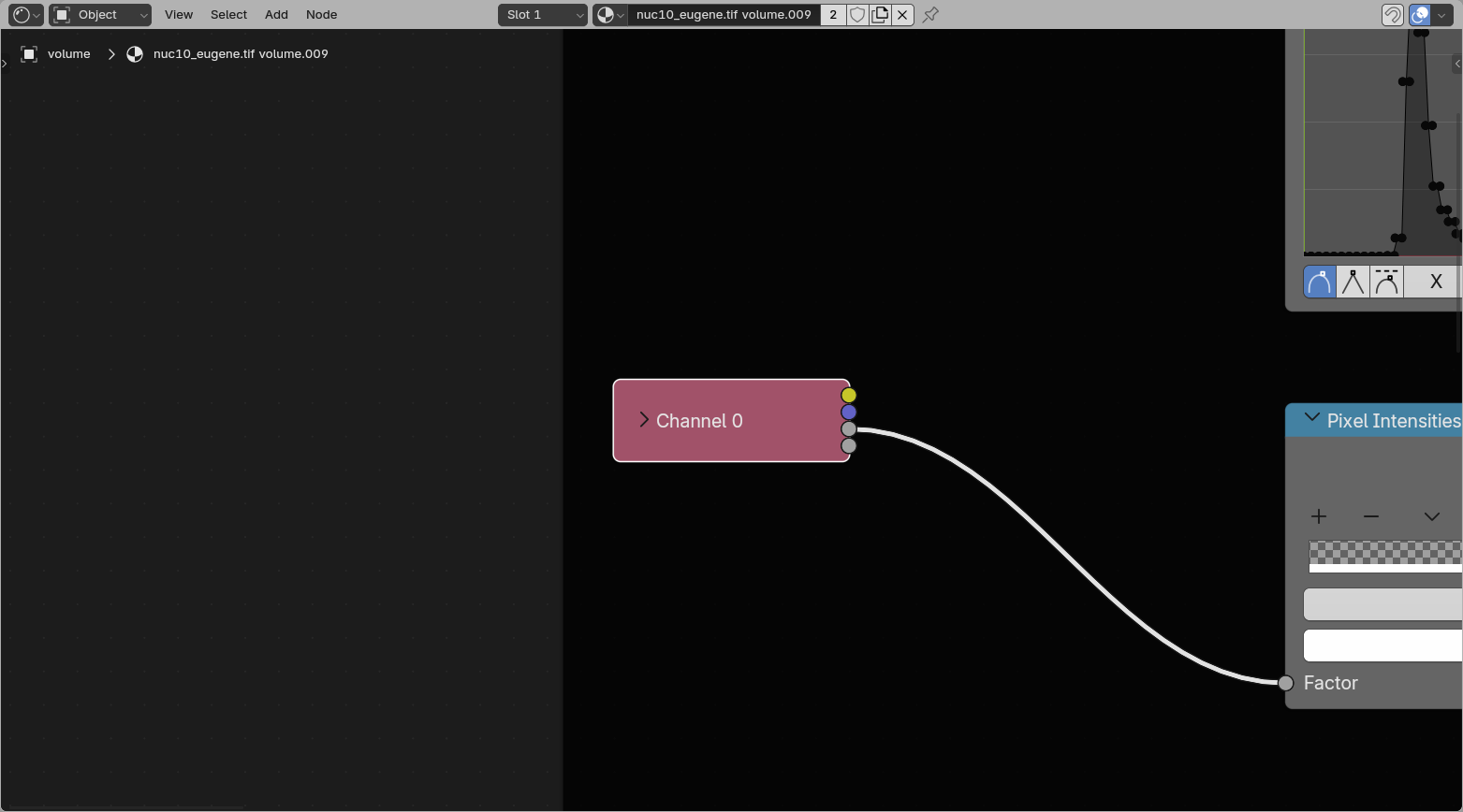
This is where the single-channel Grid attribute gets read out from the volume grids handed over by the Geometry Nodes setup.
Reusing shaders
The channel input setup is still specific to the loaded data, because it points to the per-channel Grid information coming from Geometry Nodes.
Intensity limits
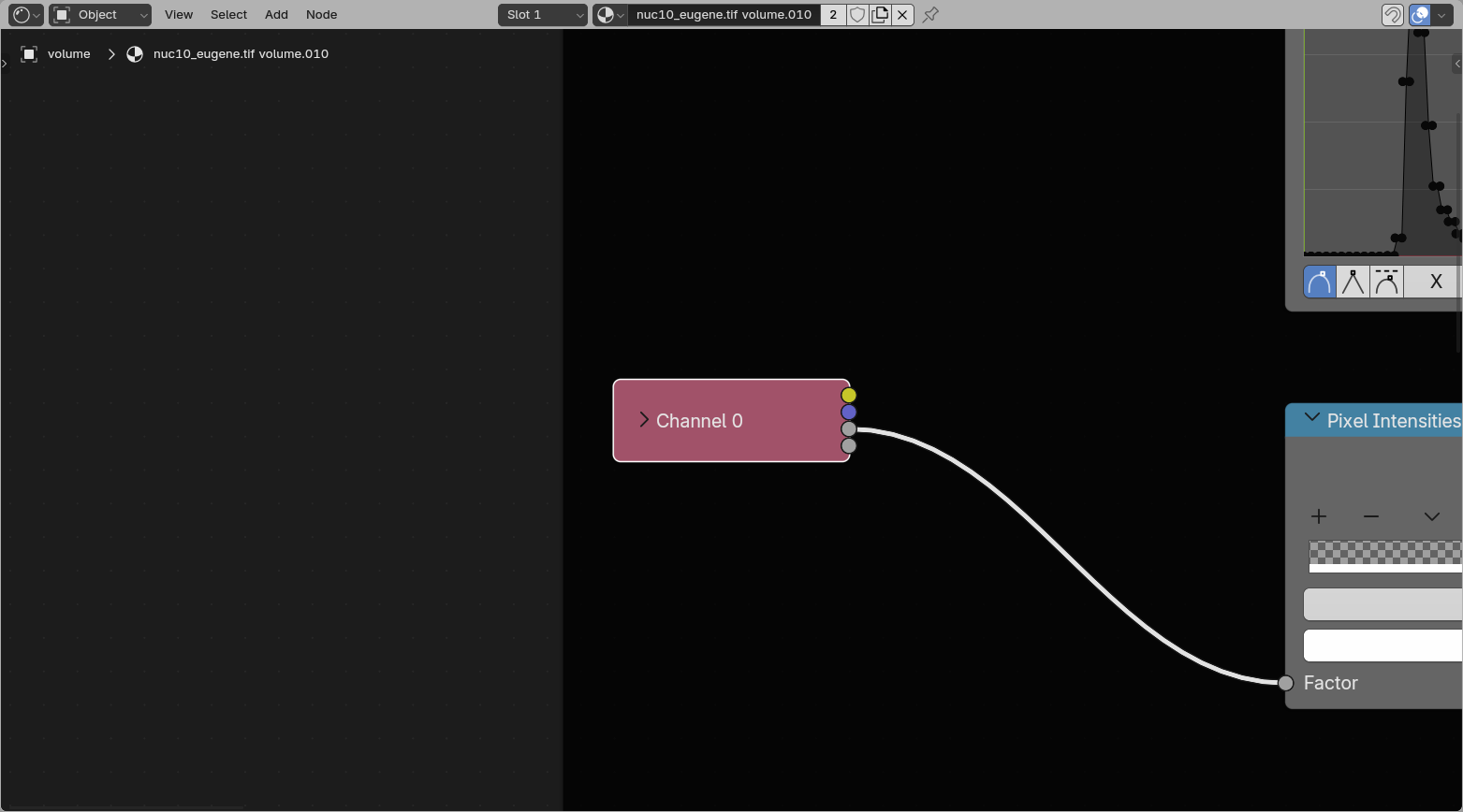
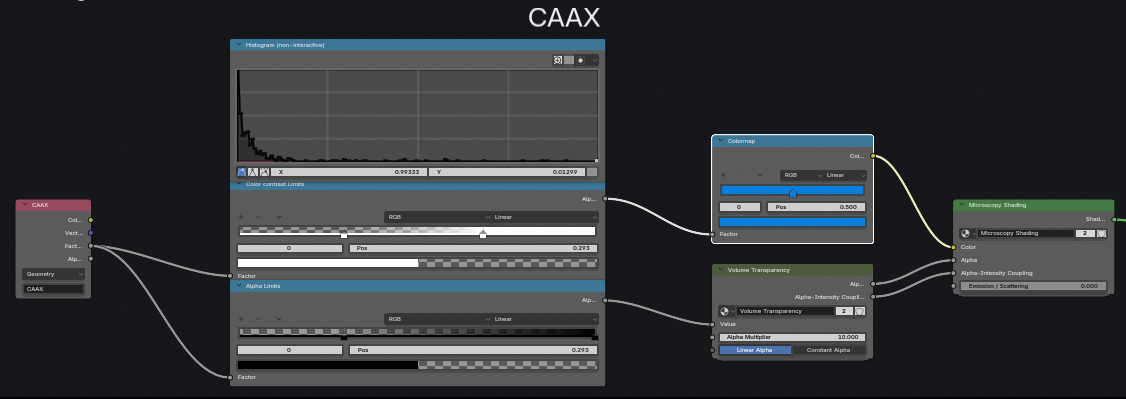
The two ramps below the histogram remap normalized source values before shading. This is analogous to a Fiji Brightness & Contrast window, with an additional independent transparency range.
- The upper Color Contrast Limits ramp defines the range passed into the Color LUT.
- The lower Alpha Limits ramp defines the intensity range used for transparency.
Select a handle and change its position to move that ramp's minimum or maximum. The two ranges can match, but they do not have to: for example, color can retain a broad intensity gradient while alpha hides more of the background.
Color LUT
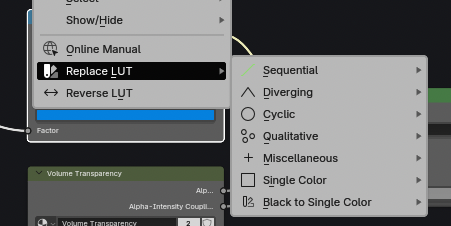
The Color LUT maps the normalized result of Color Contrast Limits to color. To replace it, right-click the Color LUT ramp, choose Replace LUT, then select a family and color map. Reverse LUT in the same menu flips the selected map. The ramp handles remain directly editable for custom colors.
Volume Transparency
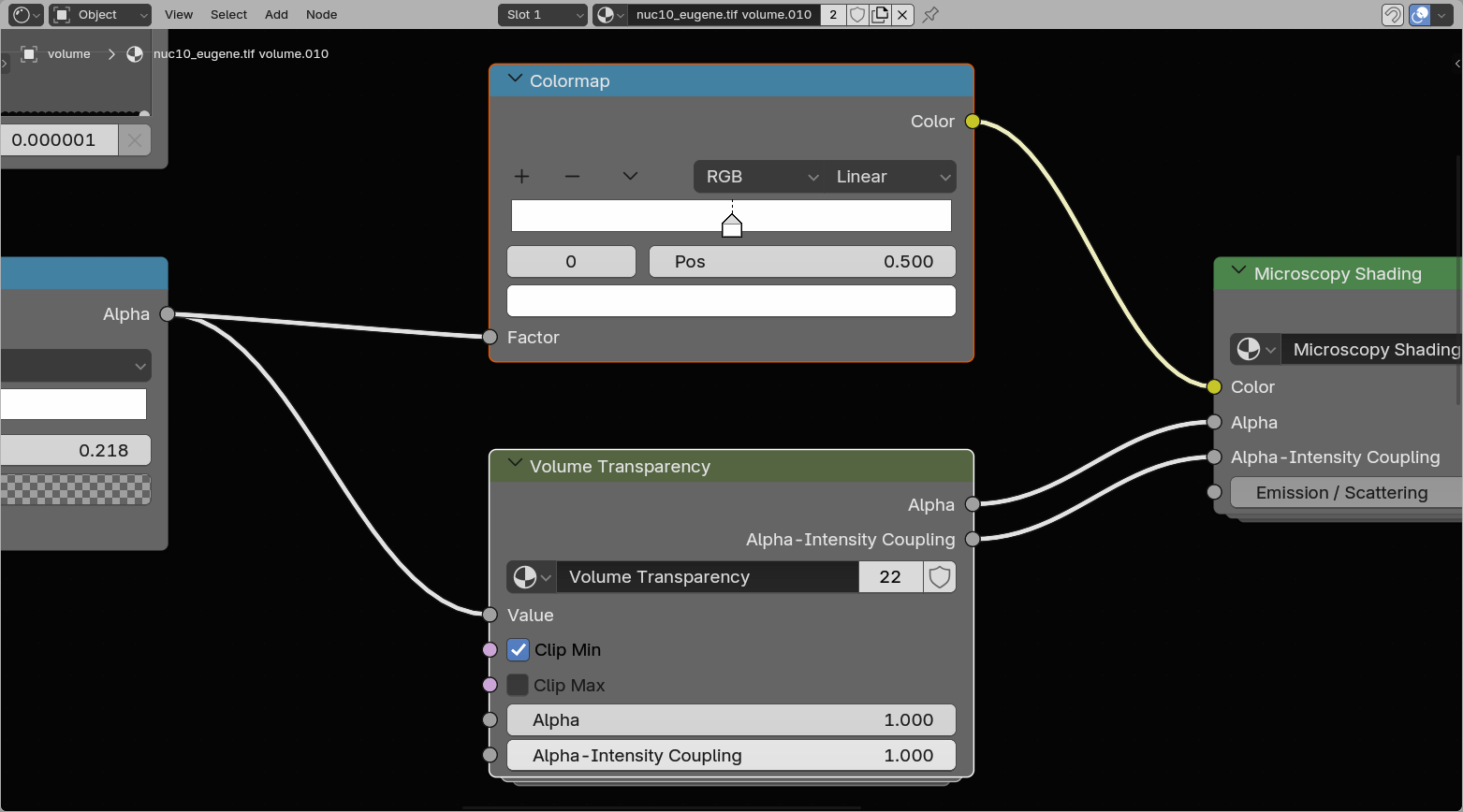
The Volume Transparency group controls how strongly each voxel contributes to the final image. It works together with the LUT and pixel intensities, but focuses only on transparency and accumulation.
Here there are multiple options:
- Clip Min
- Sets all values at 0 as transparent (left from the min in Pixel Intensities).
- Clip Max
- Sets all values at 1 to transparent (right from the max in Pixel Intensities).
- Alpha
- The base transparency contribution of the volume after clipping.
- Alpha-Intensity Coupling
- Controls how strongly the transparency follows the intensity values. Lower values keep the volume more evenly transparent, while higher values make brighter voxels contribute more strongly.
Shaders (emission/scatter)
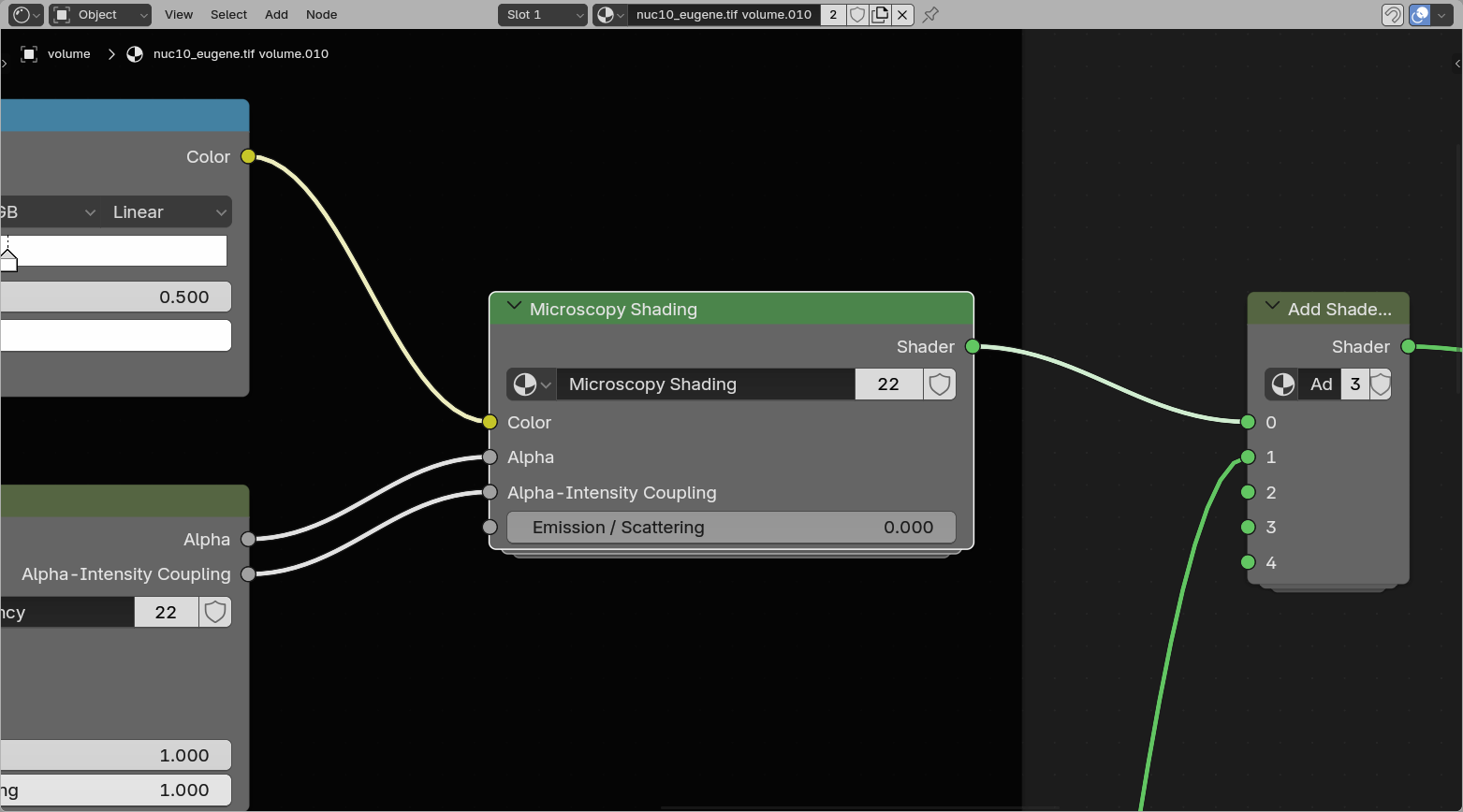
This is where the Microscopy Nodes preprocessing hooks into Blender's built-in volume shaders. The node group contains both an emissive and a scattering branch, and you can dynamically switch between them or mix them.
Advanced
Some things are editable in here, such as the Anisotropy of the scattering, which defines whether there is more backward scattering (less penetrant) or more forward scattering.
Additionally, by adding nodes (from the Add menu or Shift + A) and reconnecting the branches, it's possible to build custom combinations of emissive and scattering setups.
Slice Cube
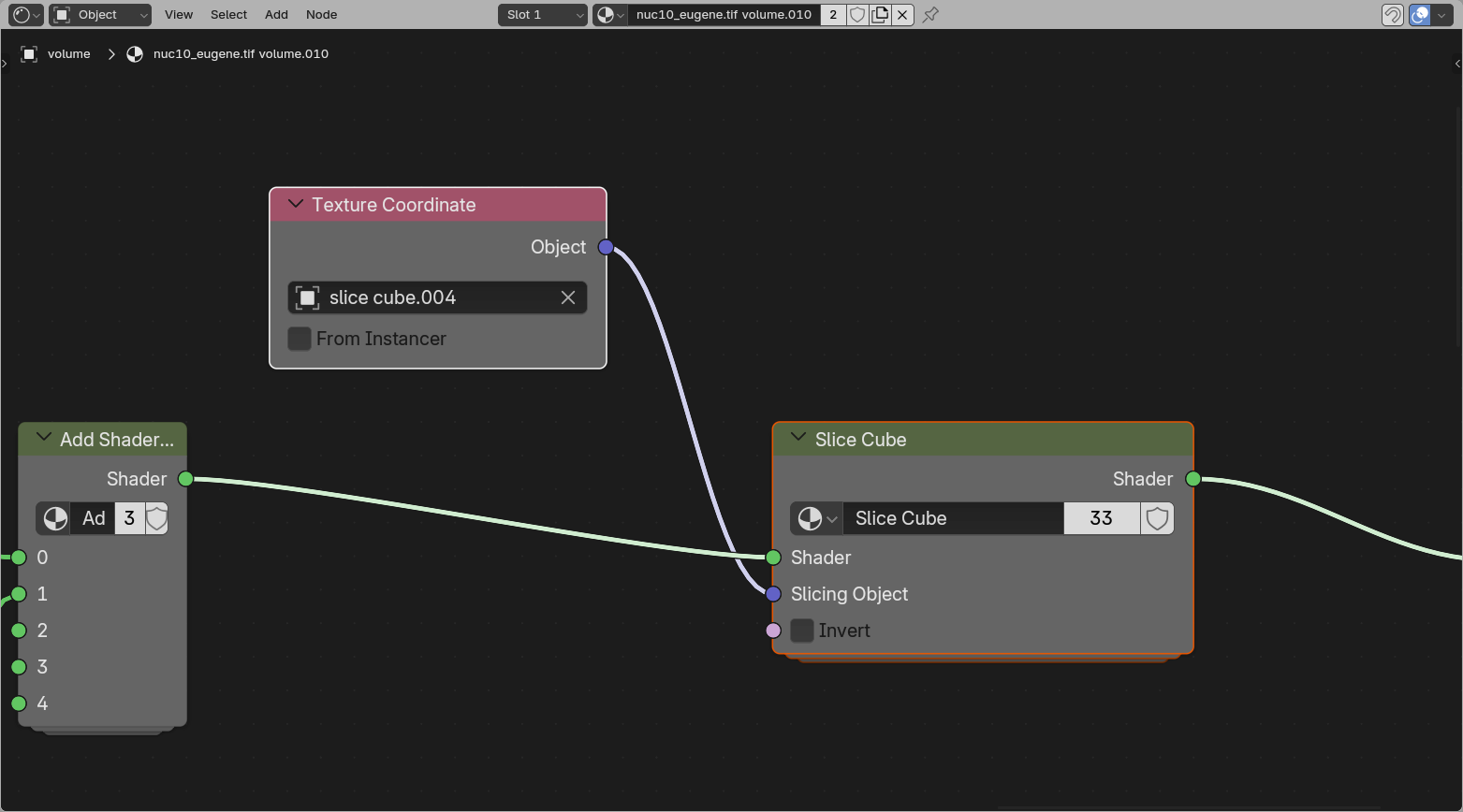
The Slice Cube section allows slicing of the volume. This has an Object pointer to a cube in the scene (by default the loaded slice cube).
The object bounding box gets fed into the slicer, which sets all regions outside the bounding box to transparent.
How this works
As shown if you press the icon at the top right of the group, how the slicing node works is to take the remapped locations as the Texture Coordinate input provides (mapping the data to the coordinates of the cube space) and compare these to the boundes (1, -1). If positions are not in the range of the cube space, the shader is set to a Transparent Shader.